Changing the game's starting position
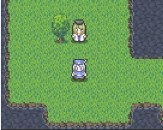
Change the game's starting position so the player appears in front of the Professor on "Sample Map A". In the Sample Game, the player starts from the Title map. This tutorial shows how to change the starting location.
Open the starting map
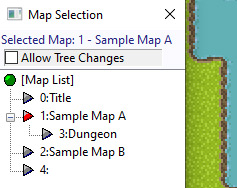
Open the Map Selection window  and choose "1: Sample Map A".
Switch to Event Layer editing
Click the ![[Ev]](image/icon_layer_ev.png) icon to switch to Event Layer editing.
icon to switch to Event Layer editing.

Change the starting position
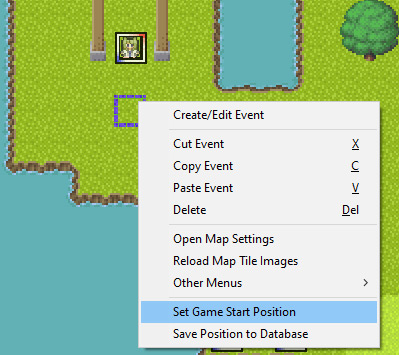
Right-click the location where you want the game to start (in this example, the tile in front of the Professor). Select "Set Game Start Position".
Play Test!
Start a Test Play  session. The game will now begin from the selected location.
You've successfully changed the game's starting position!
"Save position to Database" is different from "Set Game Start Position".
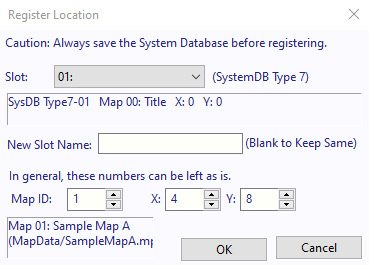
Instead of changing where a new game begins, it stores the selected map coordinates so they can be used later by events and location-transfer commands.
If you click "Save Position to Database", a window titled "Register Location" will appear. Leaving the default settings and clicking "OK" will save that location for later use.
※ This is a faithful translation of the original guide, with minor editorial additions (terminology notes, extra examples, beginner-friendly clarifications) and updated screenshots, while preserving the original intent and instructions.