Creating a new map
Create a new map called "Test" (with the filename test.mps), then draw the letters "RPG" using grass tiles as explained below, and save the map.
Create a new map
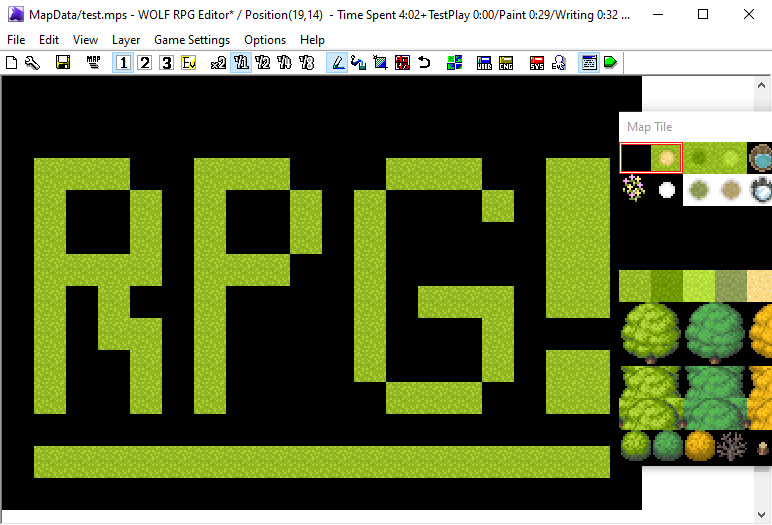
First, click on this icon  in the top bar to create a new map.
Check map settings
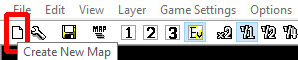
The "Create New Map" window will appear as shown on the right.
Name your map
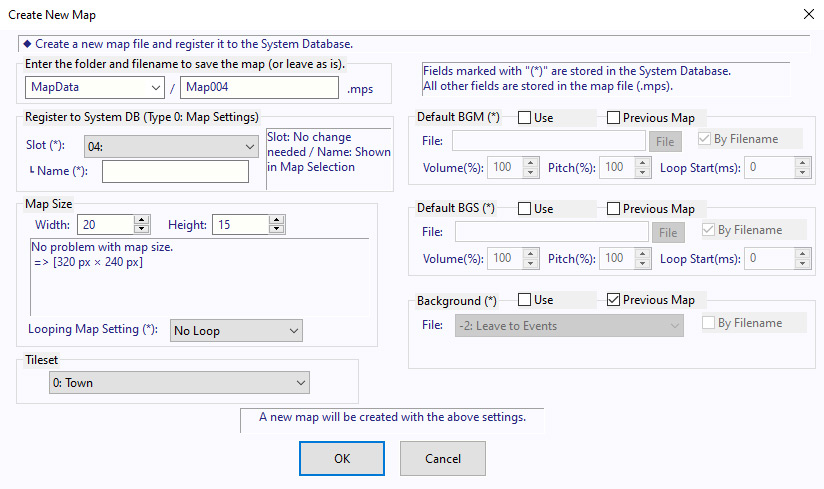
For now, just fill in the fields highlighted by the red boxes.
Set the filename to "test (.mps)" and the map name to "Test."
When done, click "OK".
Great work!
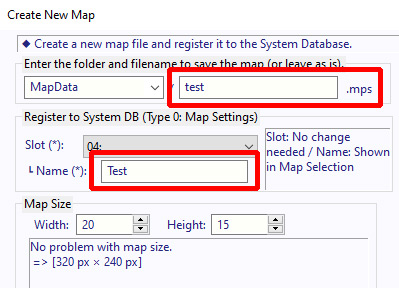
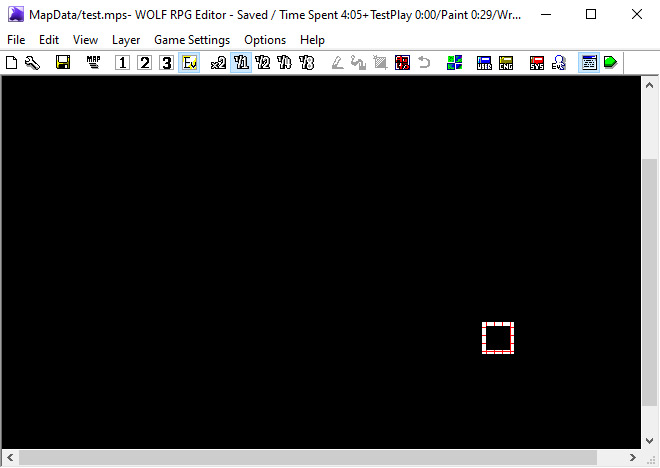
Your new map has been created!
As you can see, the entire map is black, so let’s draw something on it.
Draw a simple map
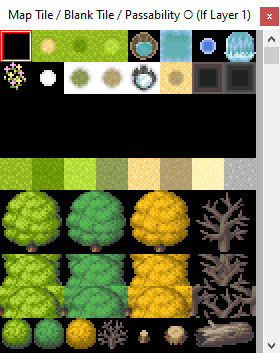
Click Layer 1  to open the Map Tile window, as shown on the right.
Pick a map tile
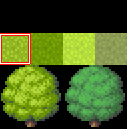
Select a grass tile from the Map Tile window. Then click anywhere in the black area on the left to place the tile.
Now try drawing a map as if you were a painter creating a picture!
Paint your map
Place lots of grass tiles and write the letters "RPG!"
When you're done, click Save  icon to save your new map.
Your first map is complete. Great work!
I placed a tile in the wrong spot!
If you tried to write "RPG!" but placed a tile incorrectly, don't worry.
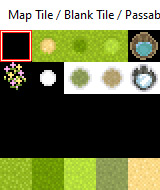
The top-left tile acts as an eraser. Select the black square in the upper- left corner of the Map Tile window, then click the area you want to erase.
Alternatively, press X while drawing.
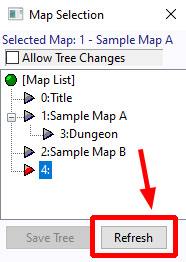
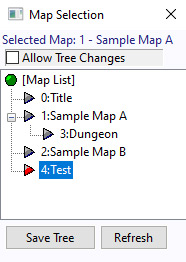
Even after creating the map, it may not immediately appear in the Map Selection window  . If that happens, click "Refresh" to reload the map list.
The new map "4: Test" will appear as shown on the right.
※ This is a faithful translation of the original guide, with minor editorial additions (terminology notes, extra examples, beginner-friendly clarifications) and updated screenshots, while preserving the original intent and instructions.