Working with Variables
Understand the different types of variables used in WOLF RPG Editor and give them meaningful names.
This tutorial covers:
• Normal variables
• Spare variables
• String variables
• Self variables in Common Events
Method 1 (from an Event) | Method 2 (from the Database)
Variables are part of the game's memory. They store information such as numbers or text that help the game remember what has happened and decide what should happen next. For example, how many times a player talked to an NPC? How much gold the player has? Or whether a quest has been completed.
Method 1 from an Event
Create a new event on the map
Open the Map Selection  window to switch to the map where you'd like to create the event.
Create an event anywhere on the map. You don't need to assign an event graphic.
For detailed instructions, refer to Steps 1–5 of "Events activated by the Confirm key".
Naming your variables
You can assign custom names to variables to make them easier to identify. For example, a variable named "PlayerGold" is much easier to recognize than "V237".
Once the event has been created, click: "■ Open Command Window ■" in the lower-right corner of the Event Window.
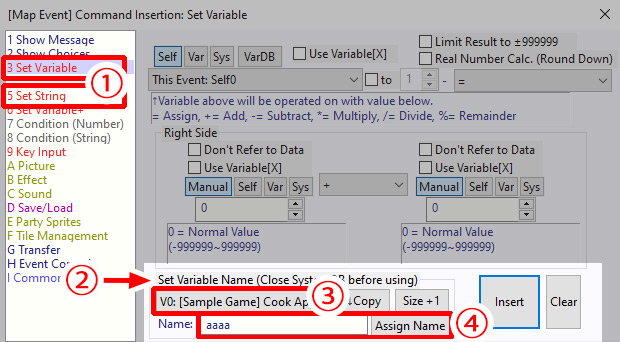
1. In the list on the left, select ③ "Set Variable"
2. Giving variables clear names makes projects much easier to understand later.
To do that, look for the section labeled "Set Variable Name". Use this area to assign a name to any variable.
⑤ "Set String" also includes a similar naming option.
3. Select the variable you want to name.
For ③ "Set Variable" these are:
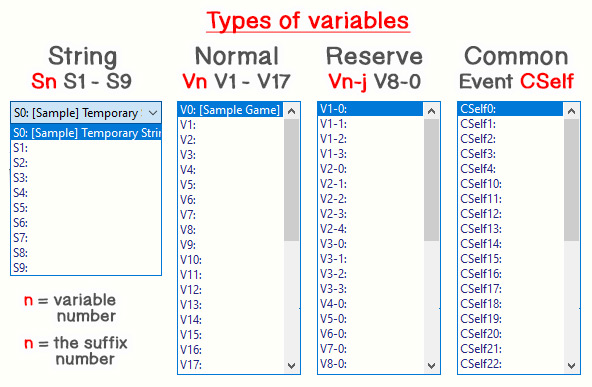
V n Normal variables
V n-j Spare variables
For ⑤ "Set String": S n String variables
n and j here simply represent numeric values. For example, V n could be V0, and V n-j could be V8-0.
When editing a Common Event:
For ③ "Set Variable":
V n Normal variables
CSelf n Common Event Self variables
For ⑤ "Set String":
S n String variables
CSelf n Common Event Self variables
4. Enter the name you want to use, then click "Assign Name" button next to "Insert".
"Copy" copies the currently selected variable name into the name field. "Size +1" increases the available variable range. For example:
- For Normal variables (V n): increases the upper limit of n
- For Spare variables (V n-j): increases the upper limit of j for the selected n
- For String variables (S n): increases the upper limit of n
You can now give variables meaningful names and make them much easier to work with!
If you'd like to learn Method 2, continue reading. Otherwise, you're finished. Great work!
Method 2 from the Database
Open the System Database Editor
There's one more place where you can configure variables, and it's the System Database Editor.
To open it, click this icon  in the toolbar.
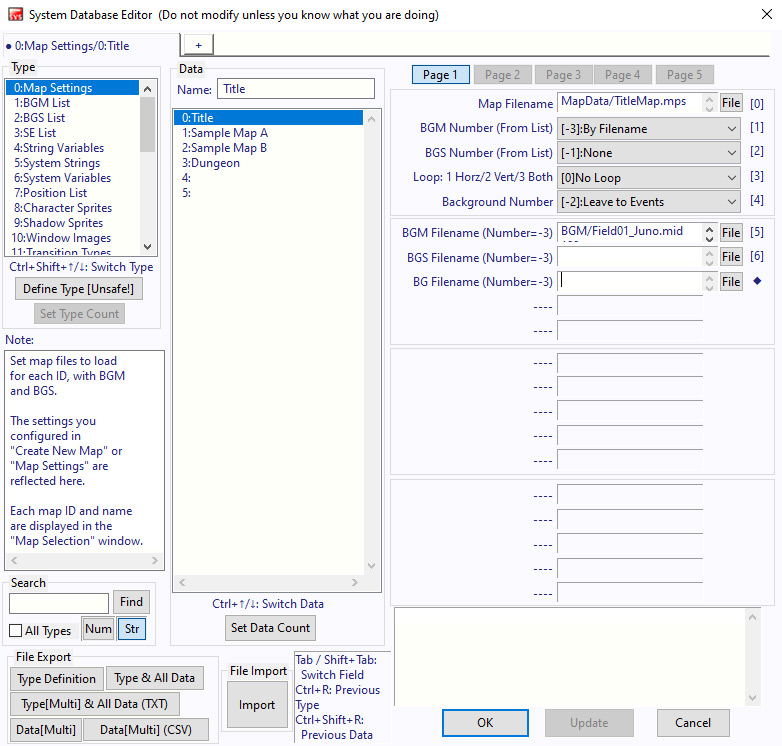
The System Database Editor window will open.

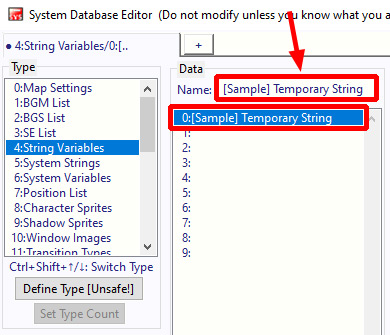
Editing variable names
Here are the areas you can safely edit:
4: String variables (S n)
14: Normal variables (V n)
15–23: Spare variables (V n-j)
From the System Database, you can manage the names of most variables from one place.
After making changes, save them by either clicking "OK" or "Update" or pressing Ctrl+S.
Your changes will then be saved and applied.
For Common Event Self (CSelf) variables
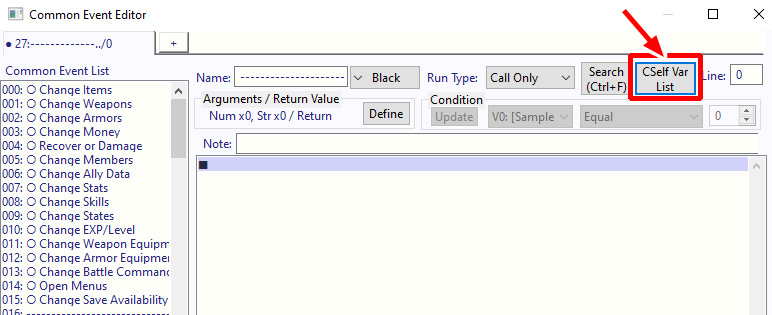
Refer to Step 1 of Creating a new Common Event on where to find the Common Event Editor.
To view all CSelf variables, click "CSelf Var List" in the top-right corner of the window.
Common Event Self (CSelf) variable list
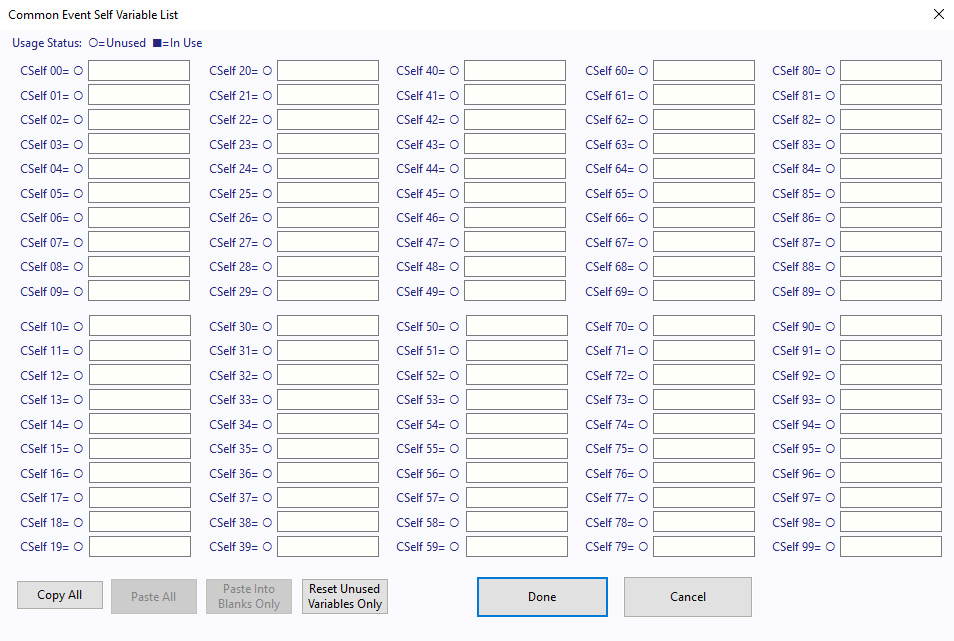
A window like the one shown on the right will appear where you can enter names for 99 Common Event Self (CSelf) variables.
After changing entries, always click "Done". If you click "Cancel", your changes will not be saved.
- "Copy All" copies all variable names from CSelf00–CSelf99 for the Common Event currently being edited.
- "Paste All" completely overwrites the current list with the content from Copy All.
- "Paste Into Blanks Only" fills in empty fields If an entry already contains any text (even a single space), it will be left unchanged.
You now know what variables are and how to give them meaningful names. Even if you're not using variables yet, naming them early can make your projects much easier to understand as they grow.
Great work!
※ This is a faithful translation of the original guide, with minor editorial additions (terminology notes, extra examples, beginner-friendly clarifications) and updated screenshots, while preserving the original intent and instructions.