Installing WOLF RPG Editor
Download and extract WOLF RPG Editor, then run the Sample Game, and open the Editor.
A .wolf file (usually Data.wolf) is the packaged, encrypted data archive WOLF RPG Editor creates when a game is exported for distribution: it bundles the game's Data folder into a single file. You don't open a .wolf file directly, the game reads it automatically when you run Game.exe. So if you downloaded a WOLF RPG Editor game, just run its Game.exe to play it. To make your own games (and your own .wolf data), download and install WOLF RPG Editor using the steps below.
Downloading the program
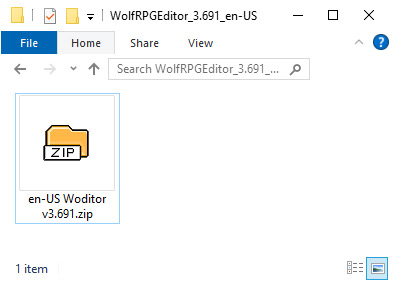
You can download the latest version of the Editor from ModDB or IndieDB pages. After that, you will see a zip file with a filename similar to this:
"en-US Woditor vx.xxx.zip" (where xxx is a version number, such as "3.691")
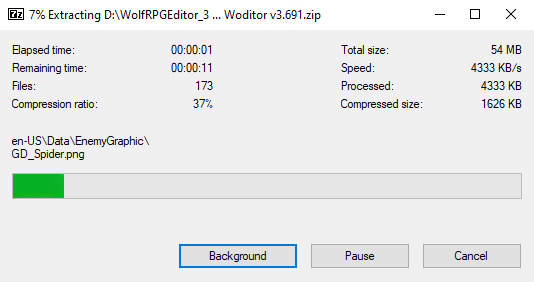
First, extract the downloaded file.
Extracting the program
A window will appear asking you to select an extraction folder. Select "OK".
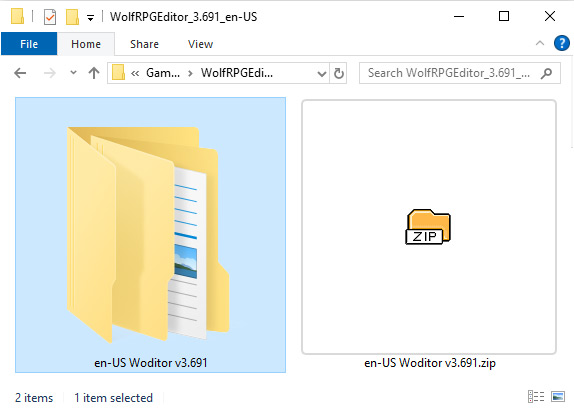
After extraction is complete
Once extraction is complete, a folder named: "en-US Woditor" will be created.
At this point, the original file "en-US Woditor vx.xxx.zip" is no longer needed, so you can safely delete it.
Now you can open the extracted folder.
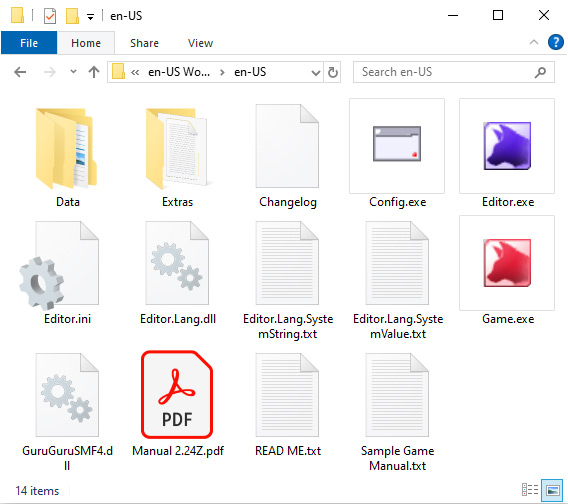
WOLF RPG Editor files
Inside the "en-US" folder you will see the files.
There are a lot of them, but for now the only ones you need are: Game.exe and Editor.exe.
To play the Sample Game
Run "Game.exe" 
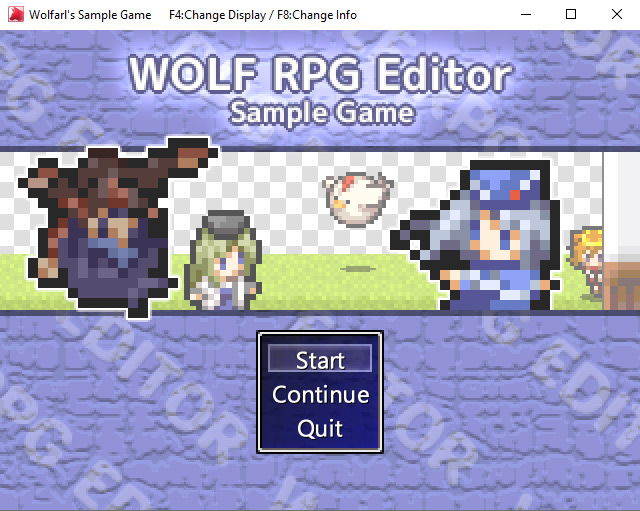
The Sample Game will start, and a screen like the one on the right will appear.
Controls:
Z (Enter/Space): Confirm,
X (ESC/Backspace): Cancel,
Shift: Special Action Key.
To exit the game, click the "×" in the top right corner, or press Alt+F4.
If you want to start editing
Run "Editor.exe"  The editor will launch.
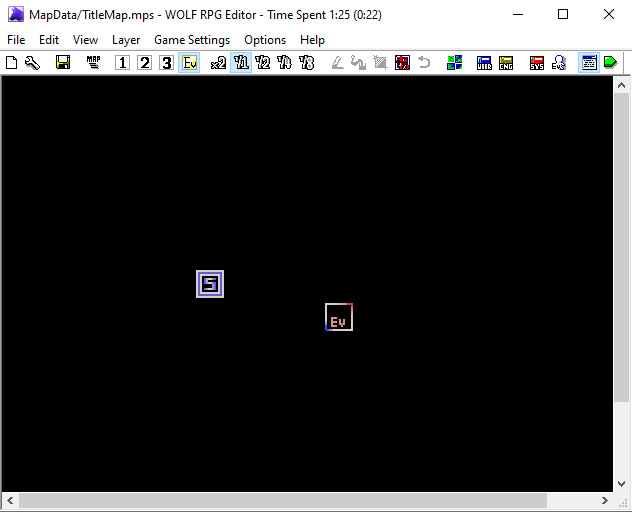
By default, you will see Map 0 "Title", which is just a plain black map with a single event and an "S" start position marker shown as a small square.
If you played the Sample Game earlier in Step 5, try switching maps and opening the familiar "Sample Map A"!
※ This is a faithful translation of the original guide, with minor editorial additions (terminology notes, extra examples, beginner-friendly clarifications) and updated screenshots, while preserving the original intent and instructions.